How-to guides
How to remove the Gemini watermark from an image (free, no upload)
A step-by-step guide to removing the sparkle logo from Gemini and Nano Banana images in your browser, without uploading the file or losing quality.
· 2 min read
Images · Nano Banana · Veo video
Remove the sparkle watermark from Gemini images — free, lossless and without uploading anything. Your file is processed right here, in your browser.
Runs in your browser. Your image is never uploaded.
Got a video? Remove the watermark from Gemini and Veo videos
Real output
Watch the same engine that runs in the tool above clean an original Gemini image. Only the pixels under the logo change; the rest of the photo is left exactly as it was.

 96×96 · x2548 y1376
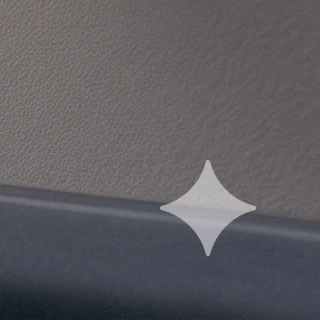 corner · 1:1
How to
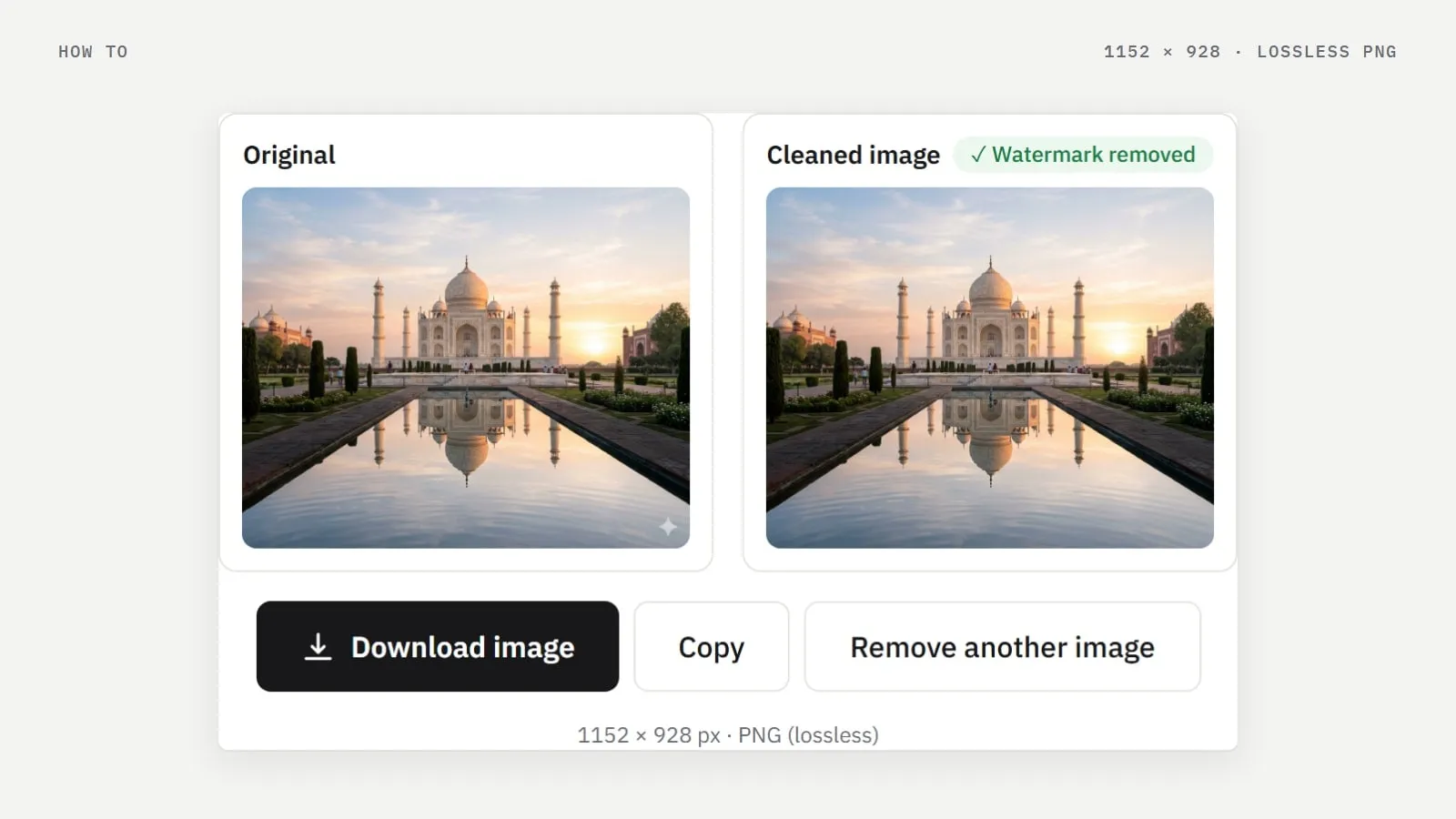
Drop, choose or paste (Ctrl+V) the image you downloaded from Gemini. PNG, JPG and WebP up to 30 MB.
The tool checks the corner positions Gemini uses, confirms the sparkle and reverses the blend. Usually in about a second.
Save a lossless PNG at the original size, or copy it to the clipboard. No account and no daily limit.
The method
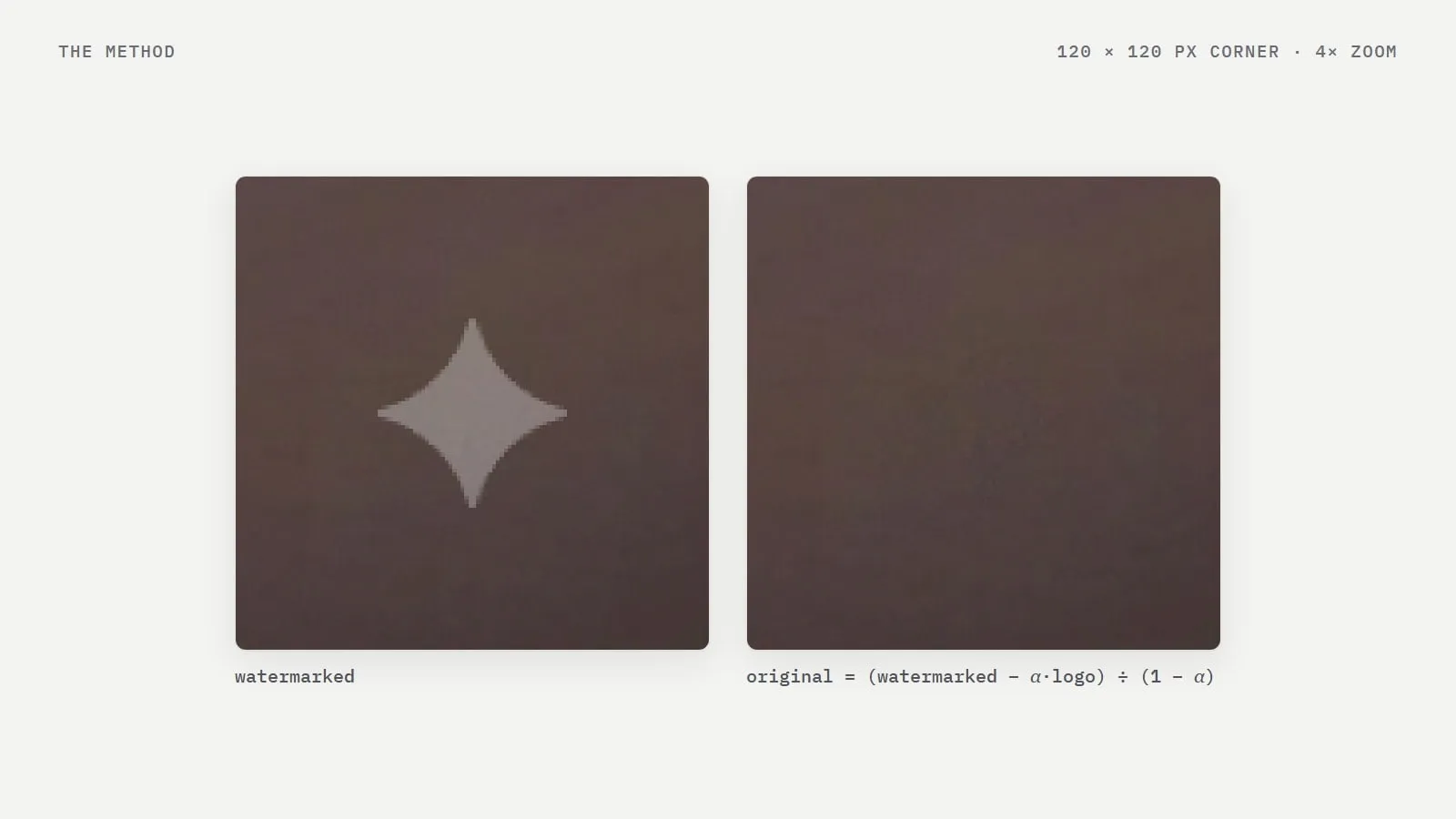
Gemini doesn’t paint its logo over your picture. It blends a white sparkle into the corner using a fixed transparency map. Because the logo and the map are known, the blend can be run backwards to recover the original pixels. No AI model guesses what was underneath.
AI erasers repaint the area with pixels that merely look plausible, which often leaves a smudge. Reversing the blend gives back the values that were there before the logo was added. Read how it works in detail
// what Gemini does
watermarked = α · logo + (1 − α) · original
// what this tool does
original = (watermarked − α · logo) ÷ (1 − α)
Privacy
The page loads the removal code once. After that, reading your file, finding the mark and writing the new PNG all happen on your own device.
Coverage
Built for original Gemini downloads. Screenshots, cropped or resized copies move the watermark, so it may not be found. Use the file you downloaded from Gemini whenever you can.
Tools
Responsible use
It removes the visible Gemini sparkle from images and videos you made with Gemini.
It doesn’t remove SynthID, Google’s invisible watermark. That stays in every image, so Google’s tools can still tell it was made with AI. It also doesn’t remove other logos, stock watermarks or anyone else’s branding.
Some places require AI-generated content to be labelled. Please keep a disclosure where the law or the platform asks for one. Responsible use
FAQ
Drop, choose or paste the image you downloaded from Gemini into the tool at the top of the home page. It finds the sparkle in the corner, removes it in about a second and lets you download a lossless PNG. There’s no account, no daily limit and no watermark of our own.
No. The image is processed inside your own browser and never leaves your device. You can check: open your browser’s developer tools, go to the Network tab and drop an image. The only request is a tiny anonymous counter, never the image. Once the page has loaded it even works offline.
No. Only the pixels under the logo are recalculated; every other pixel stays exactly the same. On a 2708 × 1536 Gemini image, for example, 4,634 pixels inside the 96 × 96 watermark box changed and not a single pixel outside it. You download a lossless PNG at the original size.
No. It removes only the visible sparkle logo. Google’s invisible SynthID watermark stays in the image, so Google’s tools can still identify it as AI-generated. See responsible use.
Yes. Use the video watermark remover. It cleans every frame in your browser and copies the original audio into the new MP4. It needs Chrome or Edge on a computer.
Nano Banana is the nickname of Google’s Gemini image models, and their images carry the same sparkle watermark. Use the same tool: drop the image you downloaded and it is removed the same way.
Yes. The bulk remover cleans up to 50 images in your browser and gives them back as one ZIP. To automate it, use the API.
The tool looks for the sparkle at the sizes and corner positions Gemini uses. Screenshots, cropped or resized copies and images edited after download move or change the mark, so it may not be found. Try the original file you downloaded from Gemini.
Google has started offering a setting to turn off the visible watermark for some images and videos. It isn’t available everywhere, for example where AI labels are required by law, and it doesn’t change images you have already created. SynthID is added either way.
It depends on where you are and how you use the image. Some places require AI-generated content to be labelled, so keep a disclosure where the law or a platform asks for one, and only clean images you made yourself. This is general information, not legal advice.
Yes. The web tools are free with no sign-up. They run in your browser, so they cost us very little to offer. Only the developer API is paid.
Guides
A step-by-step guide to removing the sparkle logo from Gemini and Nano Banana images in your browser, without uploading the file or losing quality.
· 2 min read
Where the Gemini sparkle sits, how big it is, and why it isn’t always in the same place — measured on eight real Gemini images.
· 2 min read
Most watermark removers repaint the area with AI. The Gemini sparkle can instead be calculated away. Here’s the maths, in plain language.
· 2 min read
For developers
Send an image, get it back clean. Buy credits once and use them when you need them — you’re only charged when a watermark is actually removed.
$ curl -X POST https://geminiwatermarkremoverai.in/api/v1/images/remove-watermark \
  -H "Authorization: Bearer $API_KEY" \
  -F "[email protected]" -o clean.png

# response headersHTTP/1.1 200 OKX-Watermark-Removed: trueX-Credits-Charged: 1The complete guide
Gemini makes it easy to create images and videos, and every one of them leaves with a small sparkle in the corner. This guide explains what that watermark is, how it gets there, every practical way to remove it, and how to get a clean, full-quality result in a few seconds — on a computer or a phone, for one image or thousands. It also covers what removing the visible mark does not change, so you can use the result responsibly.
The Gemini watermark is the small, white, four-pointed sparkle that appears near the bottom-right corner of images made with Google Gemini. It's semi-transparent, so the picture underneath still shows through, and it's the same symbol Google uses in the Gemini logo. You'll find it on images from the Gemini app and on images from Google's Gemini image models, often called Nano Banana. Videos made with Gemini and Veo carry a similar visible mark.
The sparkle is a visible watermark: it's there so that a person looking at the image can tell it was made with AI. Gemini also adds a second, invisible watermark called SynthID, which is spread across the whole image and can only be detected by software. The two are completely separate, and this matters later: removing the sparkle doesn't remove SynthID.
Because the sparkle is small and sits in a corner, many people only notice it when they put an image into a design, a slide or a print and the logo suddenly stands out. That's usually the moment they look for a Gemini watermark remover.
For a quick share in a chat, the sparkle rarely matters. For finished work it often does. Common reasons people remove it from their own images include:
Design and layout. A logo in the corner fights with text, frames and other elements placed on top of the image.
Presentations and documents. Slides and reports look cleaner without a stray symbol in every picture.
Thumbnails and covers. Corners are exactly where play buttons, duration labels and badges go.
Print. On a poster or a mug, a small screen-sized logo can look like a printing mistake.
Product and concept mock-ups. Clients judge the idea, not the tool that drew it.
Whatever the reason, the goal is the same: remove the mark without damaging the image, and keep being honest about where the image came from where that's required.
Gemini doesn't paint an opaque logo over your picture. It blends a white sparkle into the corner using an alpha map — a grid of transparency values that says, pixel by pixel, how much white to mix in. Near the edges of the sparkle only a little white is added; in the middle, more. In maths form, every pixel under the logo becomes:
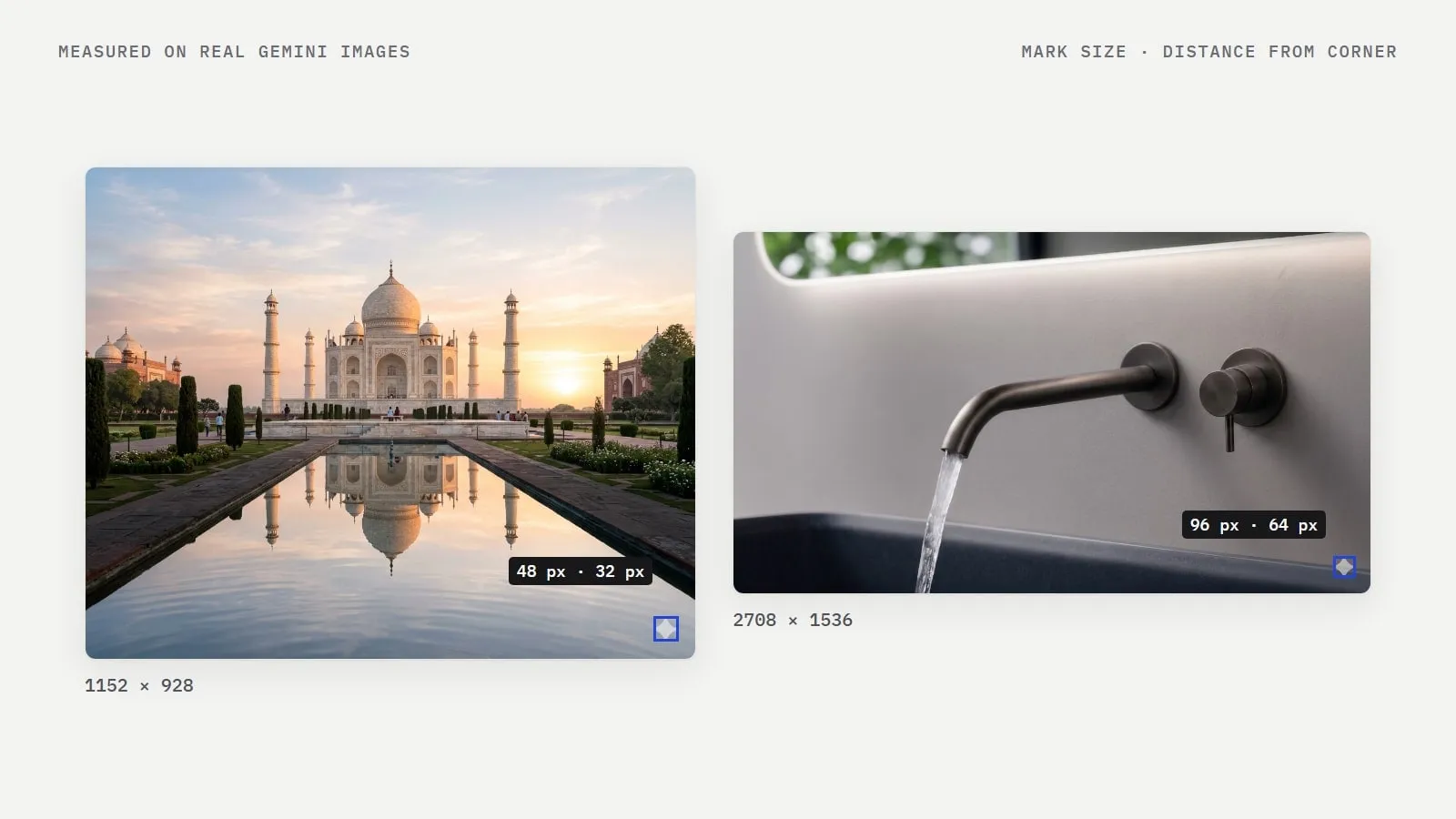
watermarked = α × logo + (1 − α) × originalThe size and position of the mark depend on the image. When we measured real Gemini downloads, most images carried a 48 × 48 pixel sparkle and the largest one a 96 × 96 pixel sparkle. The distance from the bottom-right corner varied too — we measured 32, 64, 82 and 96 pixels — and the open-source engine behind this tool also documents 2816 × 1536 images with the mark 192 pixels from the corner. Some images even carry a scaled version of the sparkle, such as 42 pixels across.
Gemini has changed these sizes and positions as new models and output sizes arrived, which is why a good remover can't simply assume one fixed spot. Our measurements guide lists every size we checked.
There are four common approaches. They differ a lot in quality, effort and privacy.
The simplest option: cut off the corner. It's quick, but you lose part of the picture and change its proportions — a 16:9 image is no longer 16:9. On images with something important near the edge, cropping isn't an option at all.
Photo editors such as Photoshop or GIMP let you paint over the logo with pixels copied from nearby. In skilled hands on a plain background this can look fine, but it takes minutes per image, and on detailed textures — water, fabric, foliage, faces — the patch often shows. It also doesn't scale to more than a few images.
"Magic eraser" apps mask the logo and ask an AI model to invent what might be underneath. They're convenient and work on any object, but they guess: fine detail is often smudged or replaced with something plausible but different. Most of them also need you to upload the image to a server.
Because the Gemini sparkle's shape and transparency are known, the blend above can be run backwards to recover the original value of every pixel under the logo:
original = (watermarked − α × logo) ÷ (1 − α)Nothing is invented and nothing outside the logo is touched. This is the method this tool uses, and it's why the result is exact rather than a guess. For a deeper explanation, see reverse alpha blending vs AI inpainting.
Method | Quality | Time per image | Keeps the full image | Upload needed |
|---|---|---|---|---|
Cropping | No logo, but part of the image is lost | Seconds | No | No |
Clone stamp / healing | Good on plain areas, visible on detail | Minutes | Yes | No |
AI eraser | Plausible, but detail is guessed | Seconds | Yes | Usually |
Reverse alpha blending | Original pixels recovered | About a second | Yes | No |
On Windows, macOS, Linux or a Chromebook, any modern browser works: Chrome, Edge, Firefox or Safari.
Download the image from Gemini. Use the download button in Gemini rather than taking a screenshot.
Drag the file onto the tool at the top of this page, click Select image, or copy the image and press Ctrl+V (Cmd+V on a Mac).
Wait about a second while the tool finds the sparkle, confirms it and reverses it. The original and the cleaned image appear side by side.
Click Download image for a lossless PNG, or Copy to paste it straight into a document, a design tool or a chat.
That's it — no account, no installation and no daily limit. For a folder of images, use the bulk remover instead.
The tool runs in your phone's browser too, so you don't need an app.
On iPhone or iPad: save the image from the Gemini app to your Photos. Open this page in Safari, tap the drop area and choose the image from your photo library. When the cleaned image appears, tap Download image; Safari saves it to the Downloads folder in the Files app, and from there you can share it to Photos or any other app. Copy lets you paste it directly into another app instead.
On Android: download the image from Gemini, open this page in Chrome, tap the drop area and pick the image from your gallery or files. Tap Download image and the PNG is saved to your Download folder, where your gallery app will find it.
Phones process images just as privately as computers: the picture stays on the device the whole time. Videos are the exception — the video tool needs Chrome or Edge on a computer, because many mobile browsers can't yet encode video the way it requires.
"Nano Banana" is the nickname for Google's Gemini image models — the models behind image generation and editing in Gemini. Images from Gemini 2.5 Flash Image, Gemini 3 Pro Image and Gemini 3.1 Flash Image carry the same visible sparkle, so they're cleaned the same way: drop the image you downloaded and the tool finds the mark for that model's output size.
These models produce many shapes and sizes, from small 512-pixel previews to 4K images, and from tall 1:8 formats to wide 8:1 banners. The tool doesn't need to be told which model or size you used. It checks the sizes and corner positions Gemini uses, scores how well each candidate matches the sparkle's shape, and removes the mark only when a candidate is confirmed. If nothing matches, you get your original image back with an explanation instead of a damaged one.
Videos are harder than images because every frame is compressed, which slightly changes the pixels under the mark. The video watermark remover handles this in three stages: it samples frames to find and confirm the watermark, reverses the blend in every frame, and uses a small AI model to smooth the edges of the cleaned area so compression doesn't leave an outline.
It works with MP4, WebM and MOV files up to 500 MB, writes an H.264 MP4 and copies the original audio into the new file without re-encoding it. In our test, a 10-second 720 × 1280 Gemini clip with 240 frames was finished in 13 seconds in Chrome. As with images, the video never leaves your computer. The step-by-step video guide has the details.
A common worry is that removing a watermark will blur or recompress the whole picture. With reverse alpha blending it doesn't. Only the pixels under the logo are recalculated; everything else is copied exactly. On a real 2708 × 1536 Gemini image, for example, 4,634 pixels inside the 96 × 96 watermark box changed — and not a single pixel outside it.
The result is saved as a PNG, which is lossless, at exactly the same width and height as the original. Nothing is resized and no extra compression is added. If the watermark area may still show a faint trace — which can happen after heavy compression or on very smooth, bright backgrounds — the tool tells you so under the result rather than hiding it.
We also tested what happens when an image has been edited after leaving Gemini. Resizing it to anywhere between 75% and 150%, re-saving it as a JPEG at quality 30, or brightening it by 15% still worked. Shrinking it to half size, or adding borders around it the way a screenshot does, meant the mark could no longer be found. Here's the full list.
Most online editors send your image to a server, process it there and send it back. This tool doesn't. When the page loads, your browser downloads the removal code once; after that, reading your file, finding the watermark and writing the new PNG all happen on your own device. The removal engine is built on an open-source project published under the MIT licence.
You can check this yourself. Open your browser's developer tools, switch to the Network tab and drop an image: the only request you'll see is a tiny anonymous counter recording whether the removal worked and how long it took — never the image, its name or its contents. Once the page has loaded you can even disconnect from the internet, and the tool keeps working.
The developer API is different by nature, because your server sends the image to ours. There, images are processed in memory and returned straight away; they aren't stored.
Removing the sparkle is a cosmetic change to your own image. It doesn't change what the image is. Gemini's invisible SynthID watermark is spread across the whole picture and is left untouched, because this tool only recalculates the pixels under the corner logo. Google's tools can still identify the image as AI-generated. We don't offer, and won't offer, anything designed to remove SynthID.
Some laws and platforms require AI-generated or AI-edited content to be labelled — the EU AI Act and India's IT Rules are two examples, and many social networks ask creators to tag AI content. Removing the visible sparkle doesn't change those obligations, so keep a disclosure wherever one is required. Only clean images you made yourself, never other people's work, and never use an AI image to mislead people about real events. Our responsible use page explains our position, and the SynthID guide explains the technology. This is general information, not legal advice.
Google has also started offering a setting that turns off the visible watermark for some images and videos, though it isn't available everywhere and doesn't affect images you've already made. SynthID is added either way.
Start from the original download. Use the file you saved from Gemini, not a screenshot or a copy sent through a chat app, which is often resized.
Remove the watermark first, edit second. Crop, resize, add borders or apply filters after cleaning the image, not before.
Prefer PNG over re-saved JPEGs. Every JPEG save changes the pixels slightly; the fewer saves, the cleaner the corner.
Check the note under the result. If the tool says a faint trace may remain, look at the bottom-right corner at full size before you publish.
Use the right tool for the job. Single images on the home page, folders in the bulk remover, clips in the video remover.
If you work with many images, there are two options. The free bulk remover cleans up to 50 PNG, JPG or WebP images at a time in your browser and gives them back as one ZIP — ideal for a product shoot, a content calendar or a client folder.
For automated workflows — a CMS, a print-on-demand pipeline, an app — the watermark removal API takes one HTTP request per image and returns it as PNG, JPEG or WebP, or as JSON with details of what was found. It uses prepaid credits instead of a subscription: one credit per image where a watermark is removed, and images without a watermark are free. New accounts get free credits to try it, and the pricing page lists the packs. Our guide to removing watermarks in bulk compares the two.
Gemini watermark — the visible white sparkle near the bottom-right corner of Gemini images and videos.
Alpha blending — mixing a logo into an image with a transparency value (α) for each pixel. Gemini adds its watermark this way.
Alpha map — the grid of transparency values that describes the watermark's shape and strength.
Reverse alpha blending — running the blend backwards to recover the original pixels. Exact when the alpha map is known.
Inpainting — filling an area with new, AI-generated pixels that look plausible. A guess, not a recovery.
SynthID — Google's invisible watermark, spread across the whole image and detected by software. Not removed by this tool.
Nano Banana — the nickname of Google's Gemini image models.
Veo — Google's video generation model; its videos also carry a visible mark.
Lossless PNG — an image format that stores every pixel exactly, with no compression artefacts.