Why the Gemini watermark wasn’t removed (and how to fix it)
Screenshots, borders and heavy downsizing can stop a Gemini watermark from being found. We tested common edits to see what still works.
Most of the time, dropping a Gemini image into the tool removes the watermark in about a second. When it doesn't, the cause is almost always what happened to the image after it left Gemini. We tested common edits on a real 1376 × 768 Gemini image to see which ones the tool still handles.
What we tested
What was done to the image | Watermark removed? |
|---|---|
Nothing (original download) | Yes |
Resized to 90% | Yes |
Resized to 75% | Yes |
Enlarged to 150% | Yes |
Re-saved as JPEG, quality 60 | Yes |
Re-saved as JPEG, quality 30 | Yes |
Brightness raised by 15% | Yes |
200 px cropped off the left | Yes |
Shrunk to 50% | No |
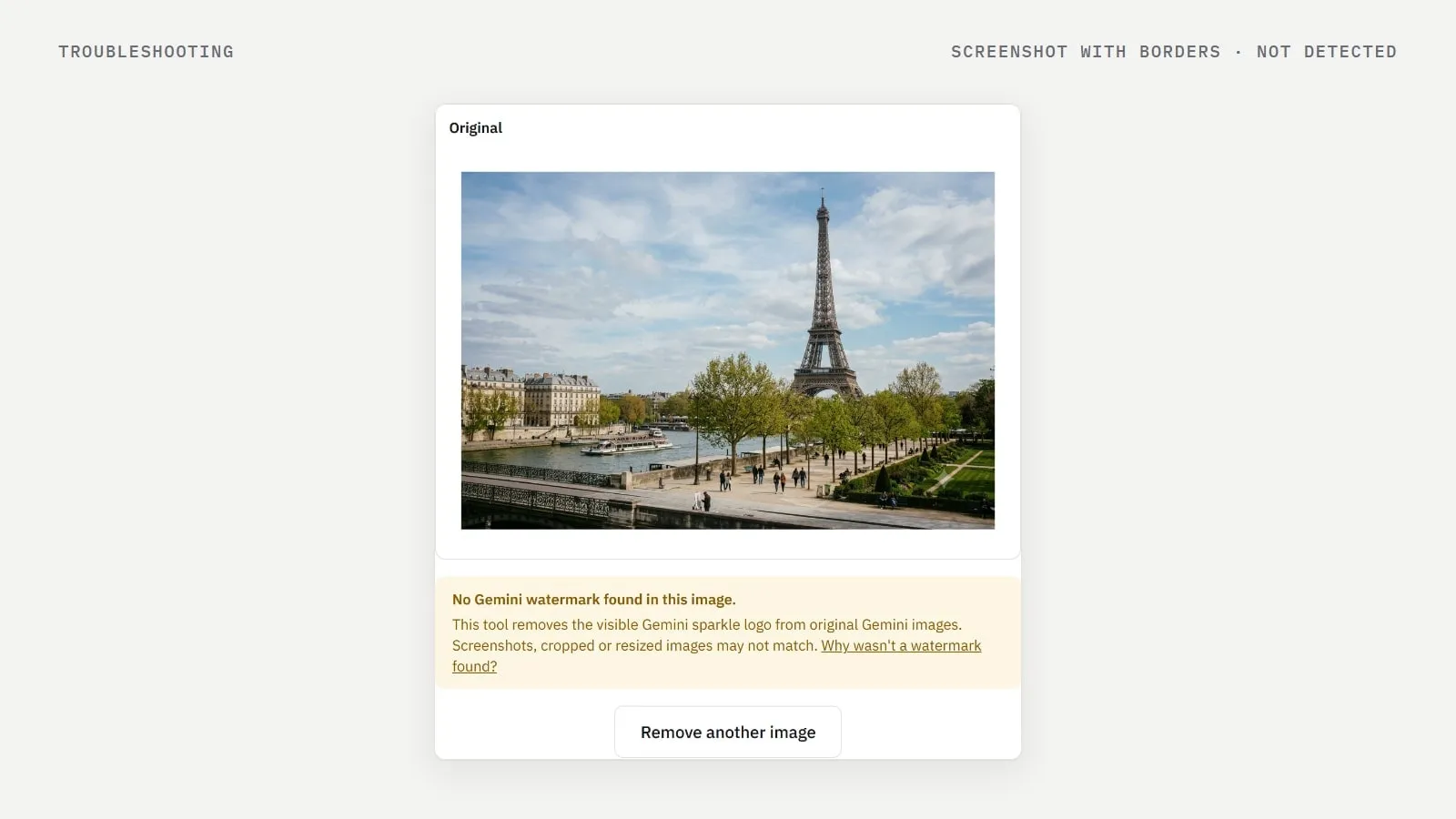
Borders added around it, like a screenshot | No |
Other images and edits can behave differently, but the pattern is clear: the tool copes with moderate resizing and compression, and fails when the corner of the file is no longer the corner of the original image.
The common causes
It's a screenshot
A screenshot usually includes some of the page around the image, or shrinks it to fit your screen. Either way the sparkle is no longer where Gemini put it. Download the original instead: open the image in Gemini and use the download button.
It was shrunk a lot
Messaging apps and some social networks resize images heavily. At half size the mark is too small and too far from its usual position to be confirmed. Use the file you downloaded, not one that was sent through a chat app.
It was cropped or framed
Cropping the right or bottom edge, or adding a border or frame, changes where the corner is. Remove the watermark first, then crop or frame the image.
There's no visible watermark
If Gemini's watermark setting was off, or the image came from somewhere else, there's nothing to remove. The tool tells you so and gives you the original back.
A faint outline remains
Sometimes the watermark is removed but a faint trace is visible, especially after heavy compression or on smooth, bright backgrounds. The tool tells you when this may have happened. Starting from the original download gives the cleanest result.
Quick checklist
Use the original file downloaded from Gemini.
Don't crop, resize or add borders before removing the watermark.
Images sent through chat apps are often resized — get the original.
For videos, use the video tool; the image tool only takes still images.
Still stuck? Tell us what you tried. We can't see your image — it never leaves your device — but a description of how it was made and edited helps.
Frequently asked questions
- Why does the tool say no Gemini watermark was found?
- Usually because the image is a screenshot, was shrunk a lot, or had borders added, so the mark is no longer where Gemini placed it. Try the original download.
- Does JPEG compression stop it working?
- Not in our tests: a Gemini image re-saved as JPEG at quality 30 was still cleaned. Heavy compression can leave a faint trace, which the tool points out.
Written by
Gemini Watermark Remover AI teamEditorial team
Our guides are written and tested by the people who build the watermark remover. Every number in them comes from running the tool on real Gemini images.