How to remove the Gemini watermark from an image (free, no upload)
A step-by-step guide to removing the sparkle logo from Gemini and Nano Banana images in your browser, without uploading the file or losing quality.
Every image you download from Gemini carries a small, semi-transparent sparkle in the bottom-right corner. This guide shows how to remove it in under a minute, for free, without sending the image to anyone.
What you need
The original image you downloaded from Gemini (PNG, JPG or WebP). A screenshot often won't work — here's why.
Any modern browser: Chrome, Edge, Firefox or Safari, on a computer or a phone.
Step 1: Open the tool
Go to the Gemini watermark remover. There's nothing to install and no account to create. The removal code loads once and then runs on your own device.
Step 2: Add your image
Drag the file onto the drop area, click Select image, or paste it with Ctrl+V (Cmd+V on a Mac) if you copied it from Gemini. On a phone, tap the drop area to pick a photo.
Step 3: Let it find the watermark
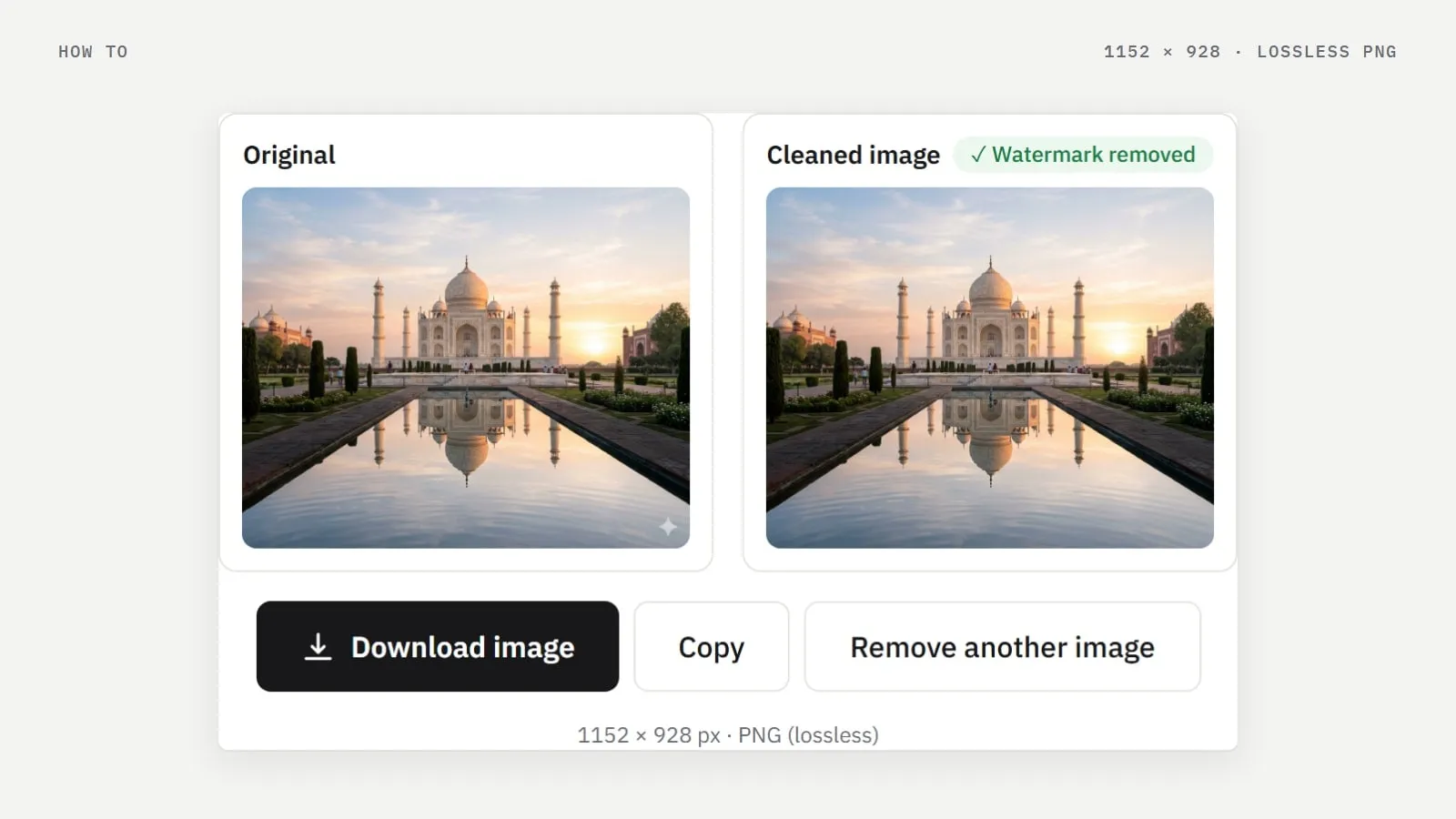
The tool checks the sizes and corner positions Gemini uses for its watermark, confirms the sparkle is really there, and reverses the blend that put it there. On a typical image this takes about a second. You'll then see the original and the cleaned version side by side.
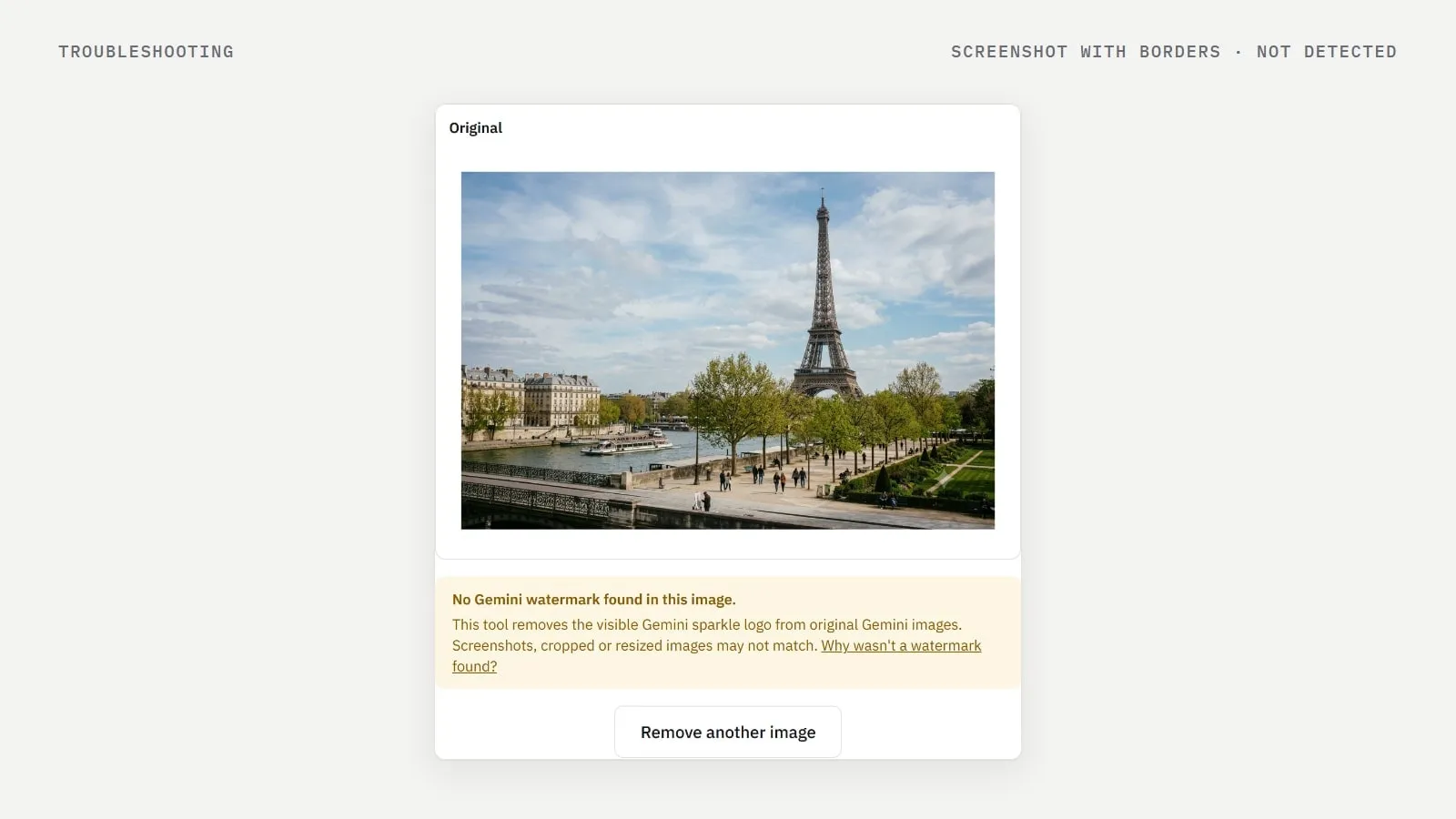
If a faint trace may still be visible, the tool says so under the result instead of pretending the image is perfect. If no watermark is found, you get the original back with an explanation.
Step 4: Download or copy the result
Click Download image to save a lossless PNG at the original size, or Copy to put it on your clipboard. Then click Remove another image for the next one.
Does it reduce quality?
No. Only the pixels under the logo are recalculated. We checked this on a 2708 × 1536 Gemini image: 4,634 pixels inside the 96 × 96 watermark box changed, and not one pixel outside it. Because the result is saved as PNG, there's no extra compression either.
Many images, videos or automation
Many images: the bulk remover handles up to 50 images at a time and gives them back as one ZIP.
Videos: the video watermark remover cleans Gemini and Veo clips frame by frame and keeps the audio.
Automation: the API takes one HTTP request per image.
Can I stop Gemini adding the watermark?
Google has started offering a setting that turns off the visible watermark for some images and videos. It isn't available everywhere — for example in places where AI labels are required by law — and it doesn't change images you've already made. Google's invisible SynthID watermark is added either way. Here's the difference between the two.
Use it responsibly
Only clean images you made yourself, and keep an AI disclosure wherever the law or a platform asks for one. See our responsible use page.
Frequently asked questions
- Do I need to sign up?
- No. The image tool is free, with no account and no daily limit.
- Does it work on Nano Banana images?
- Yes. Nano Banana is the nickname of Google’s Gemini image models, and their images carry the same sparkle watermark.
- Is my image uploaded?
- No. It is processed in your browser and never leaves your device.
Written by
Gemini Watermark Remover AI teamEditorial team
Our guides are written and tested by the people who build the watermark remover. Every number in them comes from running the tool on real Gemini images.